Find Your City & Tours
VoxTour.ai lets you explore cities in a flexible way.
You can discover curated tours or explore individual points of interest (POIs) directly from the map.
You can browse cities, tours, and places without signing in.
To listen to audio stories, you’ll need to sign in.
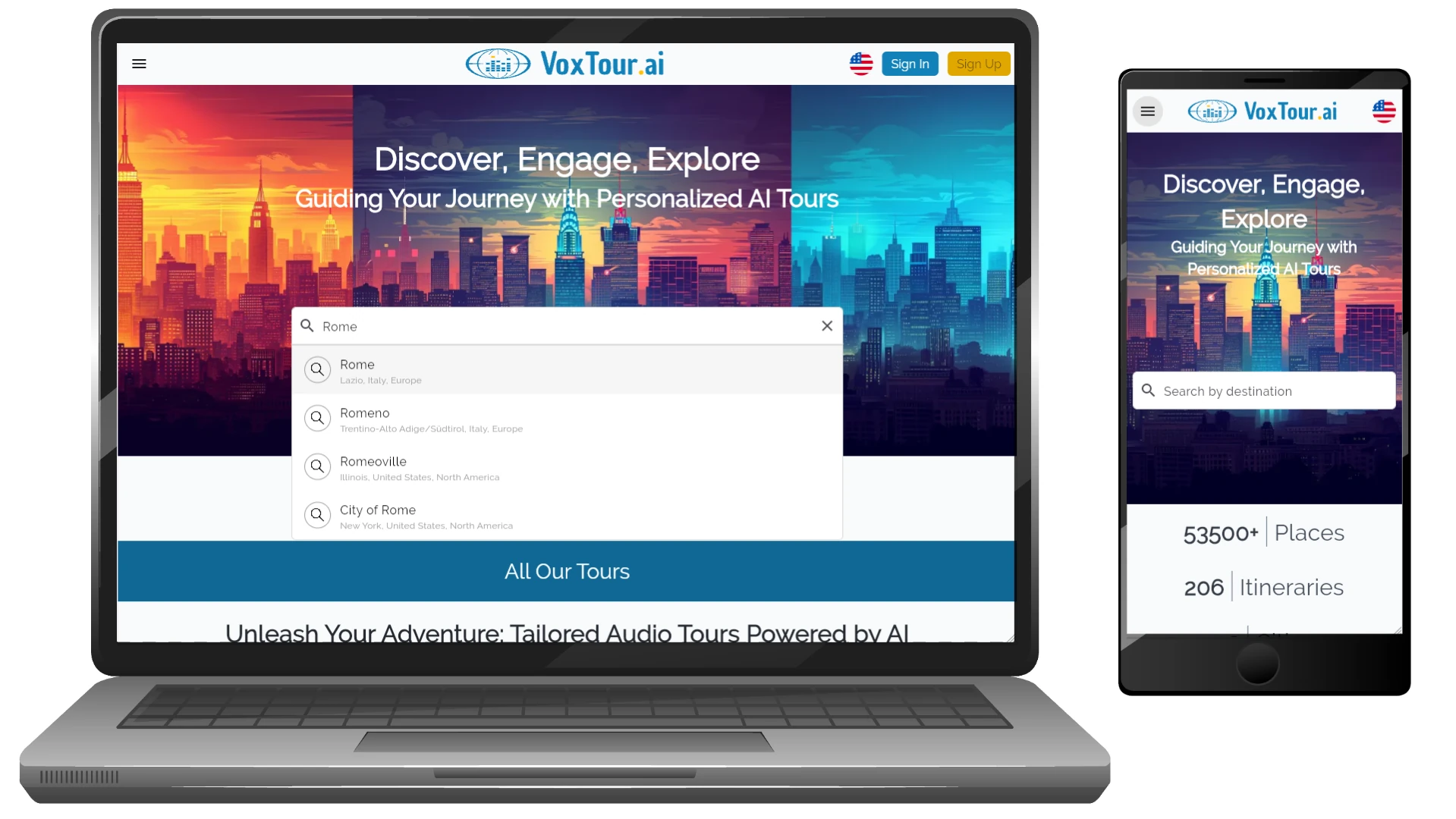
Step 1: Search for a city
On desktop:
On the home page, use the Search by destination field to enter a city name (for example, Rome or Paris), then select it from the results.
On mobile:
Tap the search field, type a city name, and select it from the list.
Step 2: Explore the city map
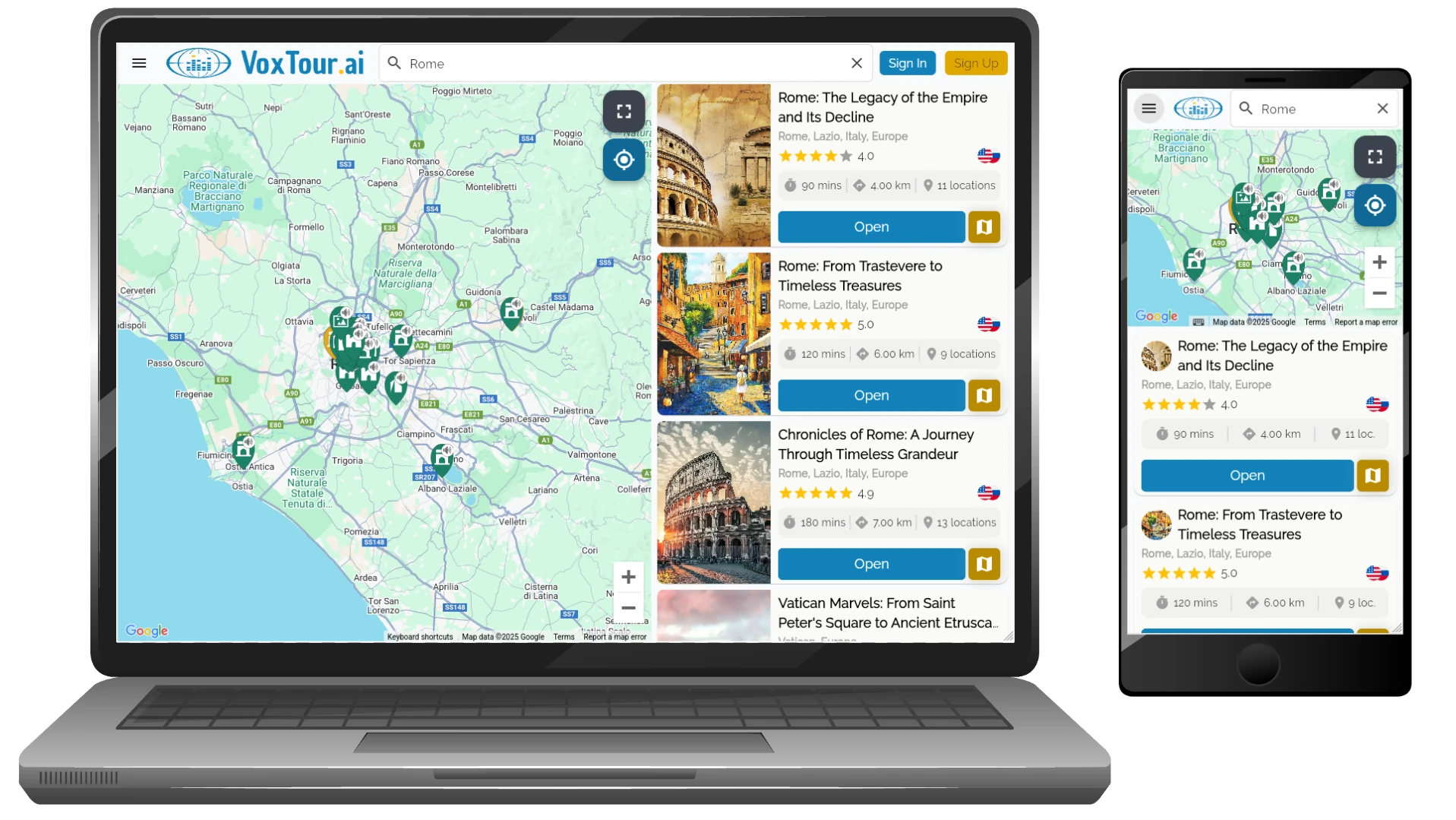
After selecting a city, you’ll see:
- a map with numbered and icon-based POIs
- a list of available tours for that city
The map and the tour list work together, you can explore visually or browse tours first.
Step 3: Explore individual places (POIs)
You don’t have to follow a tour to explore.
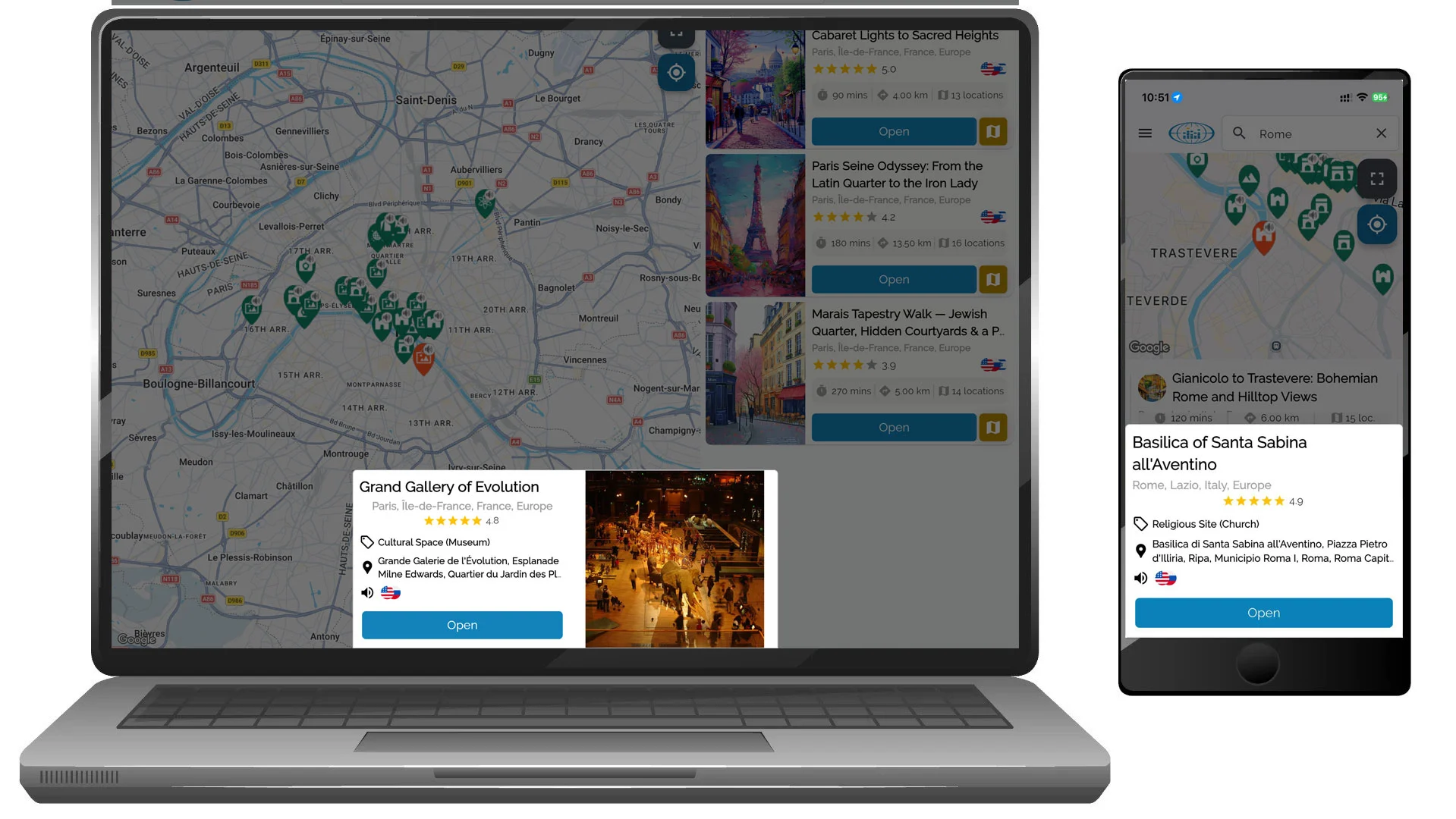
Tap or click any POI icon on the map to open a place preview.
Each POI preview shows:
- place name and category
- rating (if available)
- available audio languages
- a short description
This is ideal if you want to:
- explore freely
- listen only to places nearby
- stop and play audio whenever something catches your eye
Step 4: Browse tours in the list
The tour list shows curated routes created to help you explore a city around a theme or area.
Each tour card includes:
- Tour title
- Rating
- Estimated duration
- Total distance
- Number of stops (locations)
These details help you quickly compare tours and choose one that fits your time and walking preferences.
Step 5: Check available languages
Next to the tour rating, you may see one or more language icons (for example 🇺🇸 🇫🇷 🇮🇹).
These icons indicate the languages in which the tour audio is available.
Choose a tour that matches the language you want to listen in.
Step 6: Preview the tour route on the map
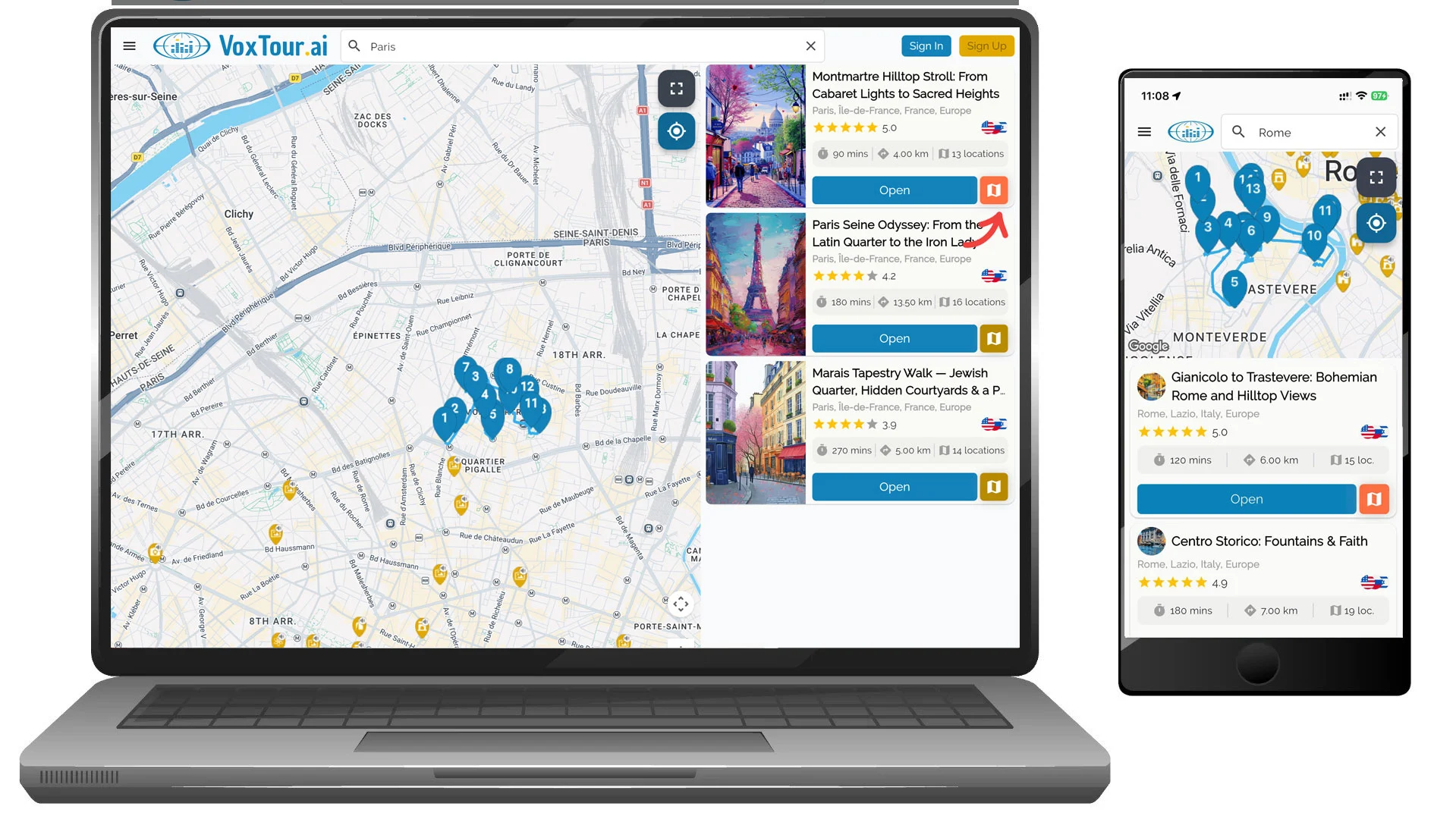
Tours include a route icon (map/book icon) next to the Open button.
Tap or click this icon to:
- display the full tour route on the map
- see how all tour stops are connected
- understand the walking path before starting
This is helpful if you want to check distances, walking direction, or how the tour fits into your plans.
Step 7: Open a tour
Select Open to view the full tour page.
From there, you can:
- see all included locations
- check detailed tour information
- choose your listening language
- start the tour after signing in
Choose how you want to explore
With VoxTour.ai, you can:
- follow a complete tour from start to finish
- listen to individual POIs in any order
- combine both approaches depending on your mood and time
Tip:
If you’re short on time, explore nearby POIs.
If you want a deeper, guided experience, choose a tour and follow its route at your own pace.