How to create an account (Sign up)
Creating an account in VoxTour.ai is quick and only takes a few steps.
An account is required to start listening to audio tours.
Step 1: Open the sign-up page
On mobile:
From the home screen, tap the menu icon ☰ in the top corner and select Sign Up.
On desktop:
On the home page, click Sign Up in the top-right corner of the screen.
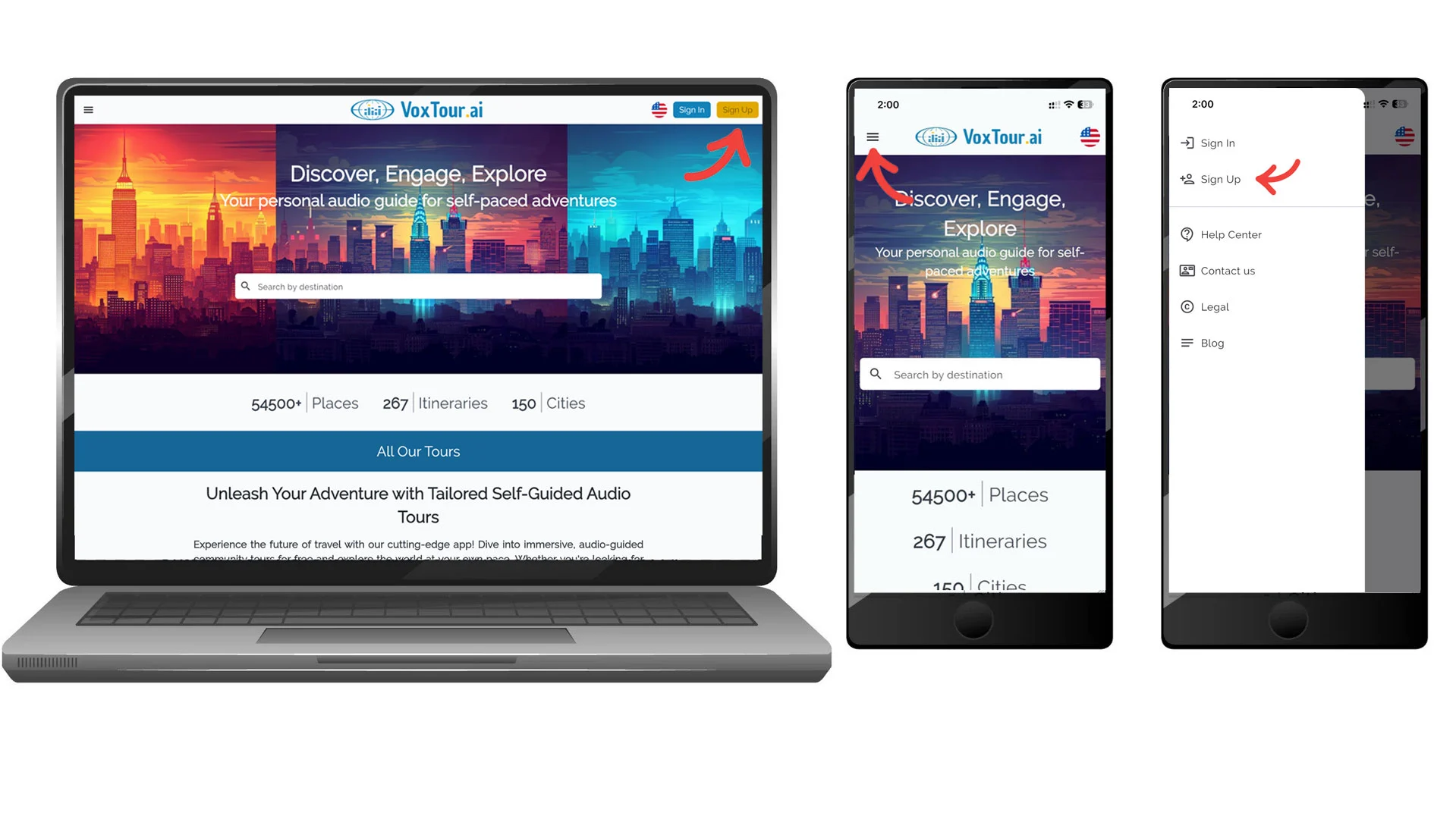
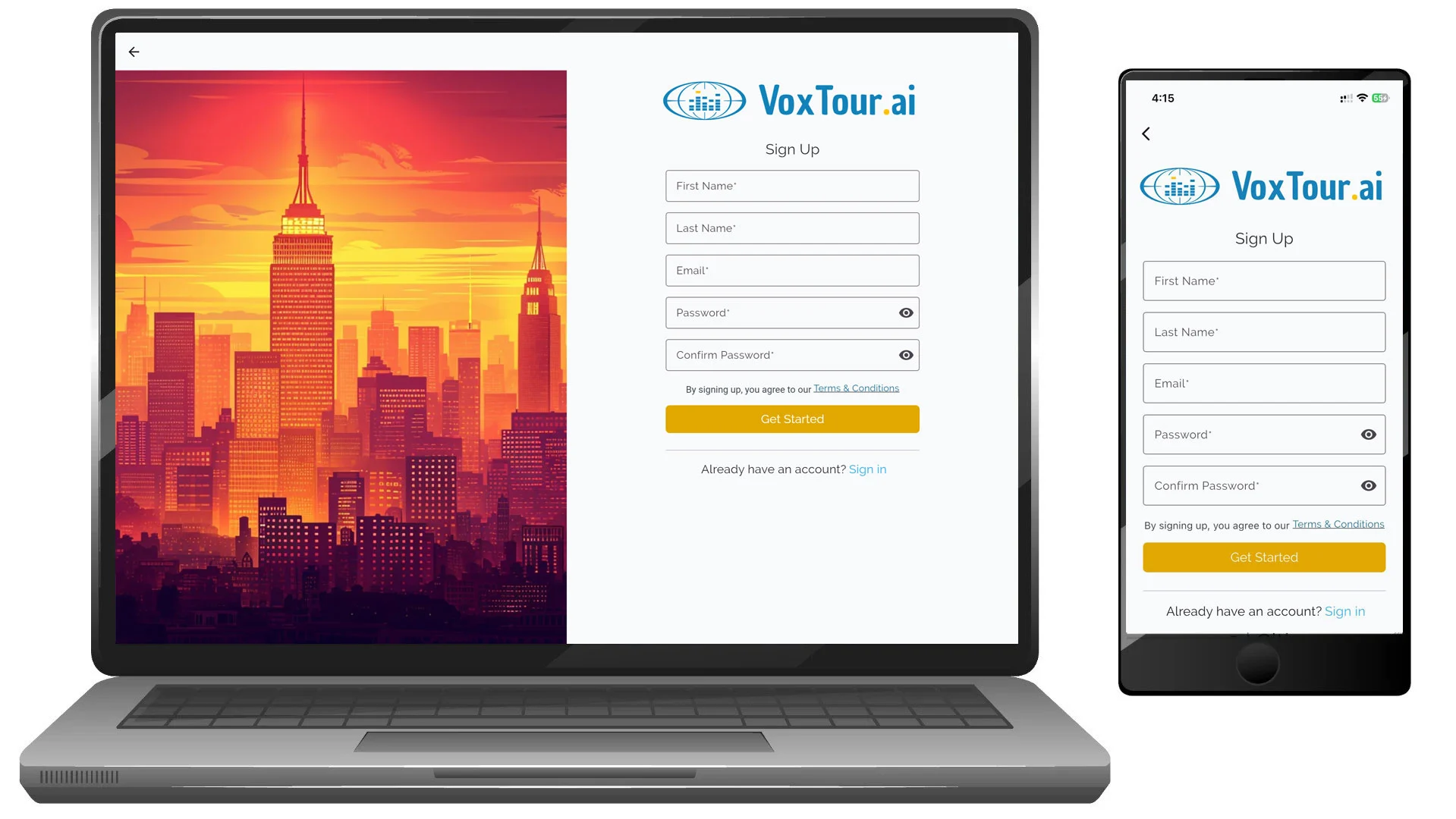
Step 2: Enter your details
To create a new account, sign up using your email address.
Fill in the following fields:
- First name
- Last name
- Email address
- Password
- Confirm password
Make sure your email address is correct — it will be used to verify your account.
When finished, tap or click Get Started.
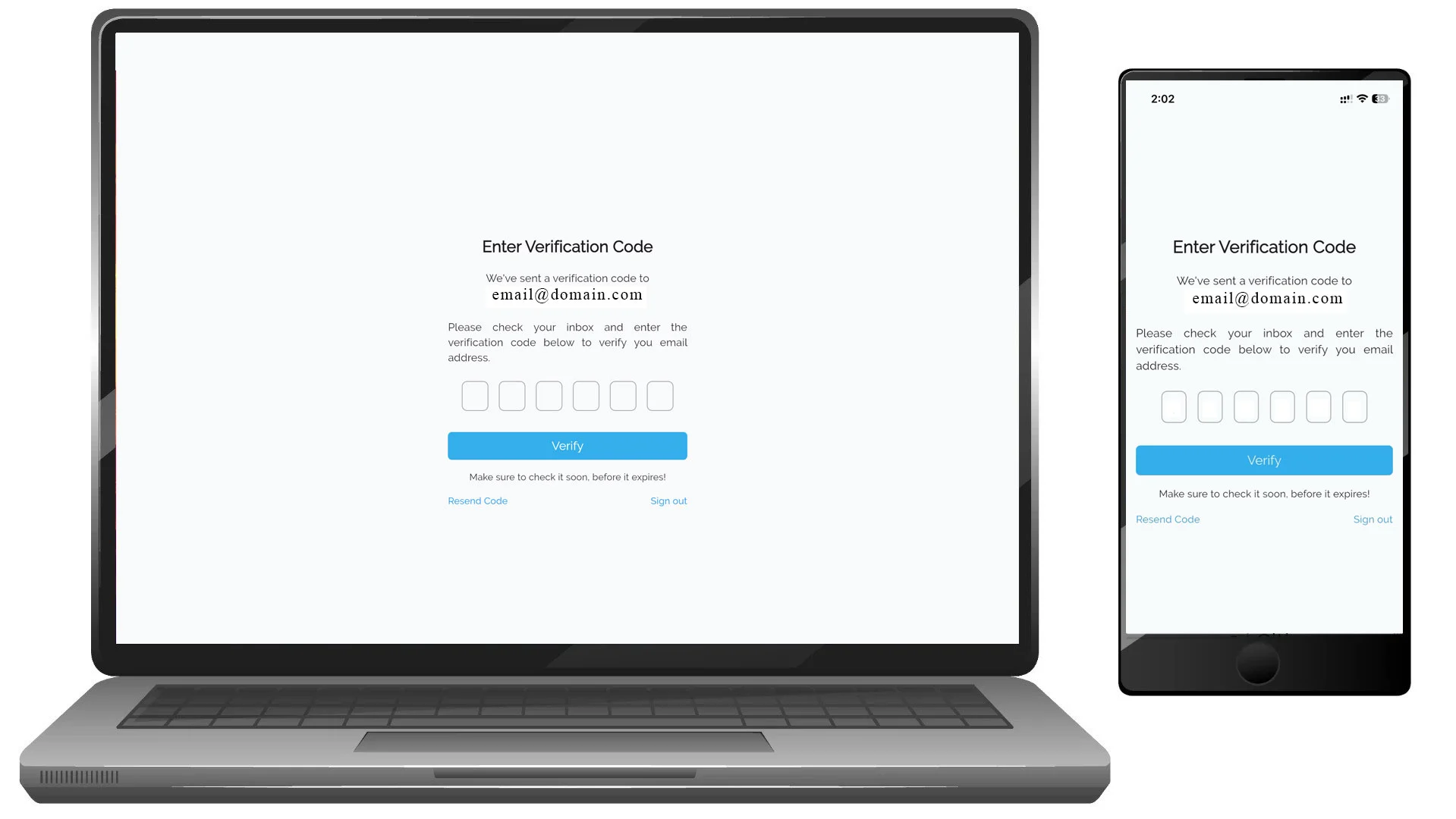
Step 3: Verify your email address
After submitting the form, VoxTour.ai will send a 6-digit verification code to your email address.
On mobile and desktop:
- Check your inbox for the verification email.
- Enter the verification code on the screen.
- Tap or click Verify.
If you don’t see the email, check your spam folder or select Resend Code.
Step 4: Account created
Once your email is verified, your account is ready to use.
You can now:
- Sign in to your account
- Start listening to audio tours
- Save your progress
- Add places and tours to your favorites
Note:
Google and Apple are available for sign in only.
If you already have an account, choose Sign In instead of creating a new one.
How to sign in
If you already have a VoxTour.ai account, you can sign in using your email and password or a supported third-party option, depending on your device.
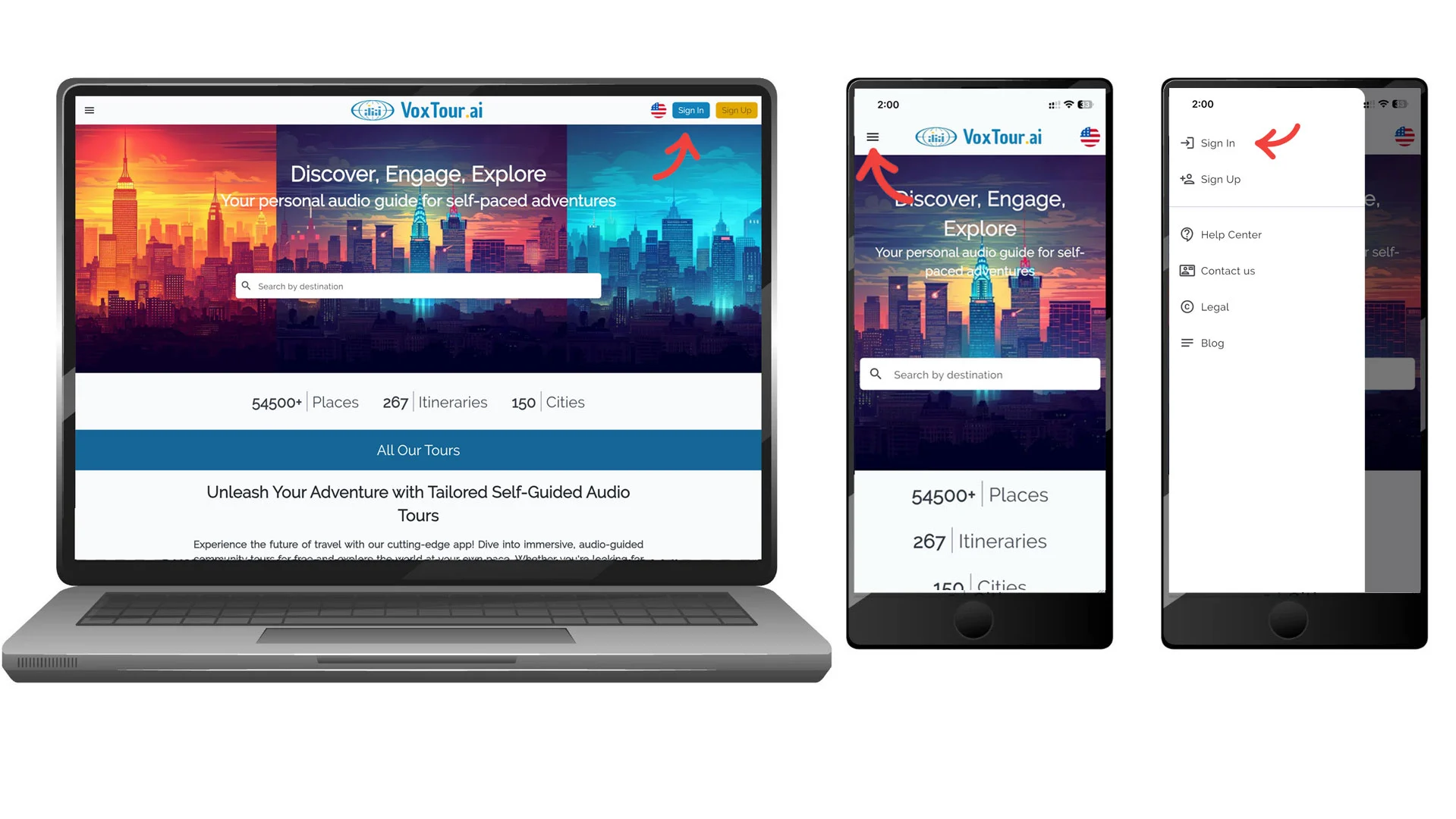
Step 1: Open the sign-in page
On mobile:
From the home screen, tap the menu icon ☰ and select Sign In.
On desktop:
On the home page, click Sign In in the top-right corner of the screen.
Step 2: Choose how to sign in
VoxTour.ai offers different sign-in options depending on your platform.
On desktop (web)
You can sign in using:
- Email and password
Enter your email and password, then click Sign in,
or select Continue with Google.
On iPhone (iOS app)
You can sign in using:
- Email and password
- Apple
Choose your preferred option:
- Enter your email and password and tap Sign in
- Or tap Continue with Apple
- Or tap Continue with Google
On Android (app)
You can sign in using:
- Email and password
Enter your email and password and tap Sign in,
or tap Continue with Google.

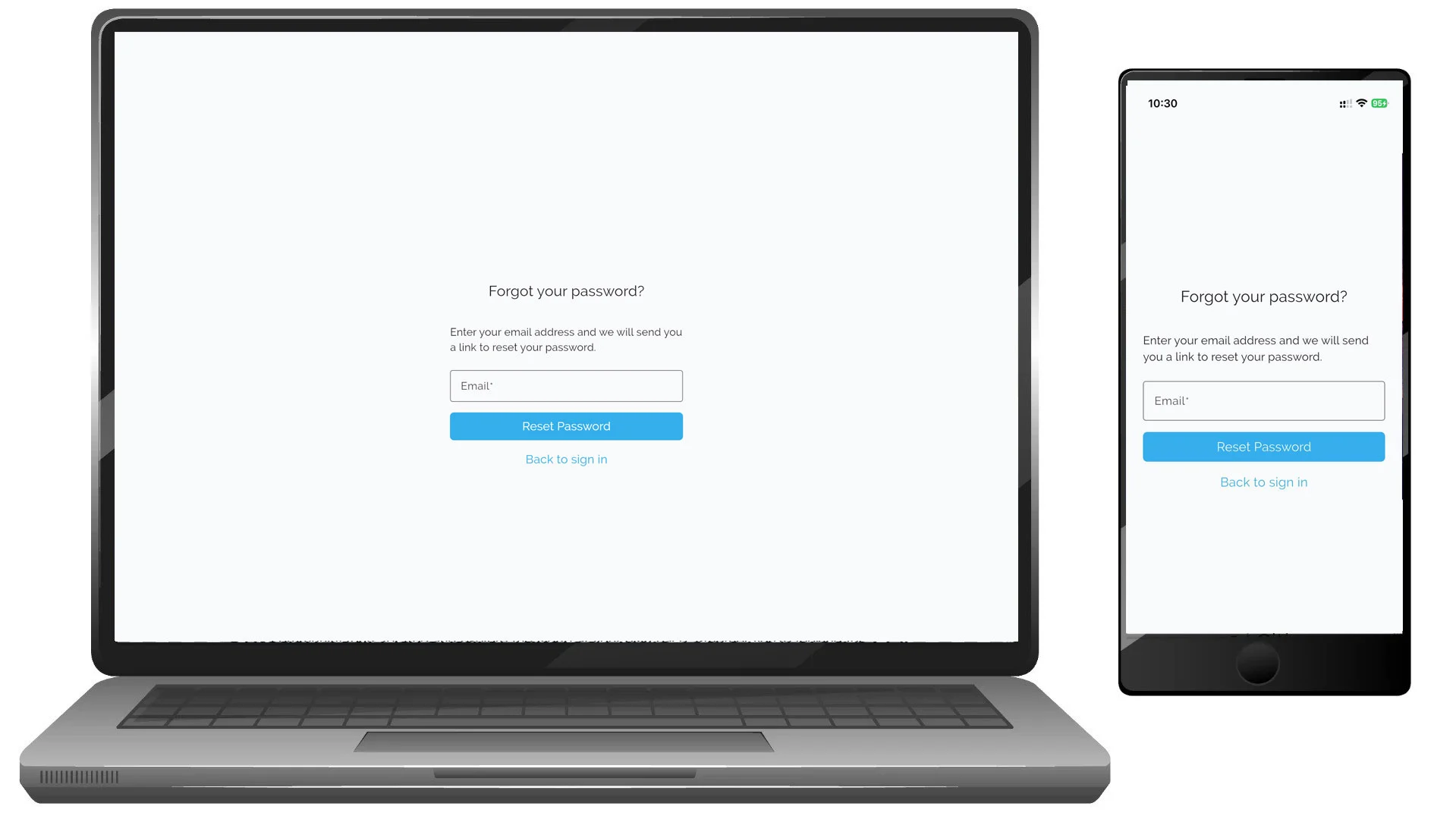
Step 3: Forgot your password?
If you don’t remember your password:
- Select Did you forget your password?
- Enter your email address
- Follow the instructions sent to your email to reset your password
Step 4: Signed in and ready to go
Once signed in, you can:
- Start listening to audio tours
- Continue where you left off
- Save your favorite places and tours
- Access your account across devices
Note:
If you don’t have an account yet, select Sign up to create one.