Start & Listen to a Tour
Once you choose a tour, VoxTour.ai makes it easy to preview the route, review stops, and start listening at your own pace.
Step 1: Open the tour page
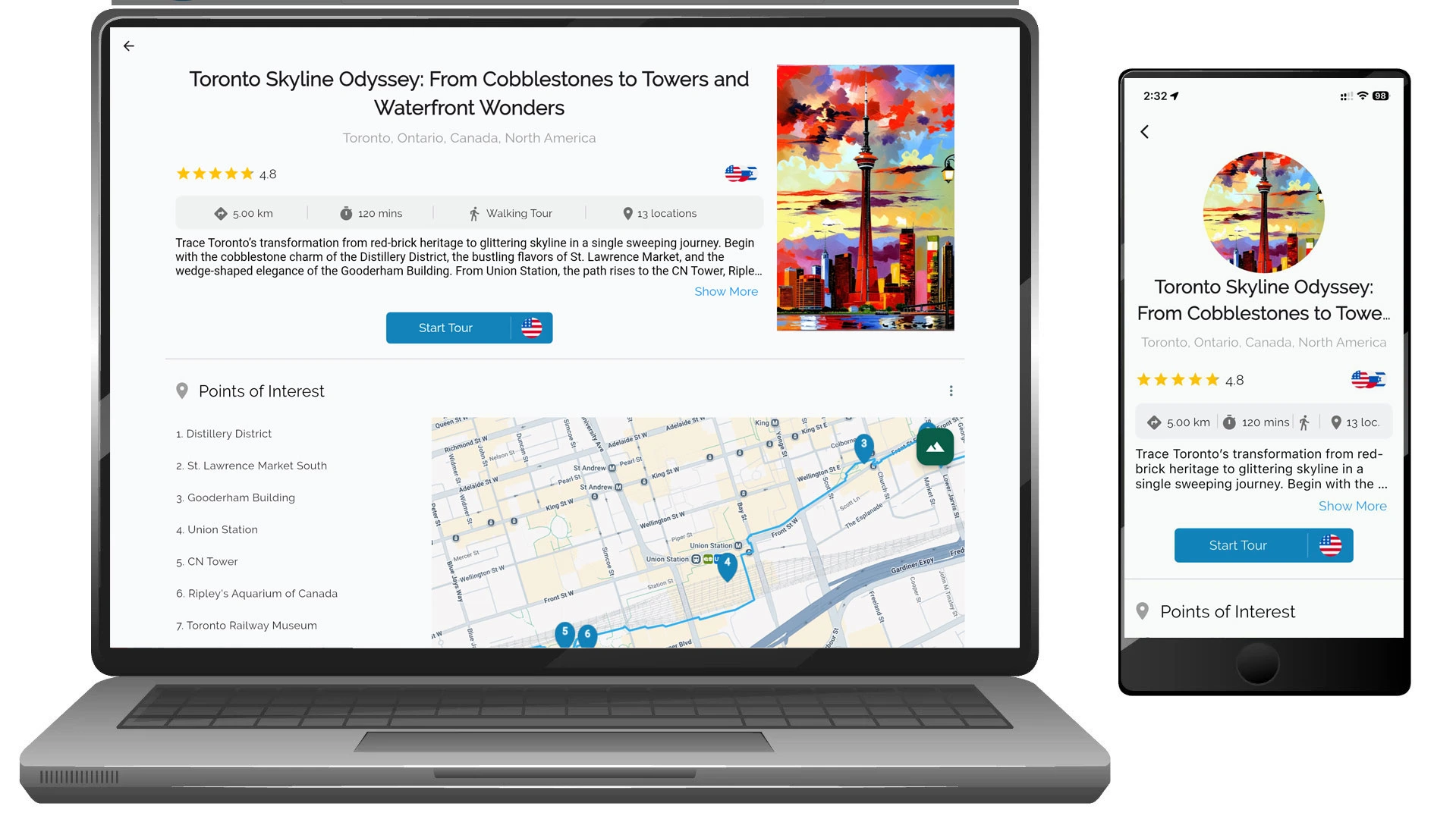
From the city screen, tap or click Open on any tour card.
The tour page shows:
- Tour overview and description
- Rating and available audio languages
- Estimated walking distance and duration
- Number of included stops
- Full list of Points of Interest (POIs)
Step 2: Choose your listening language
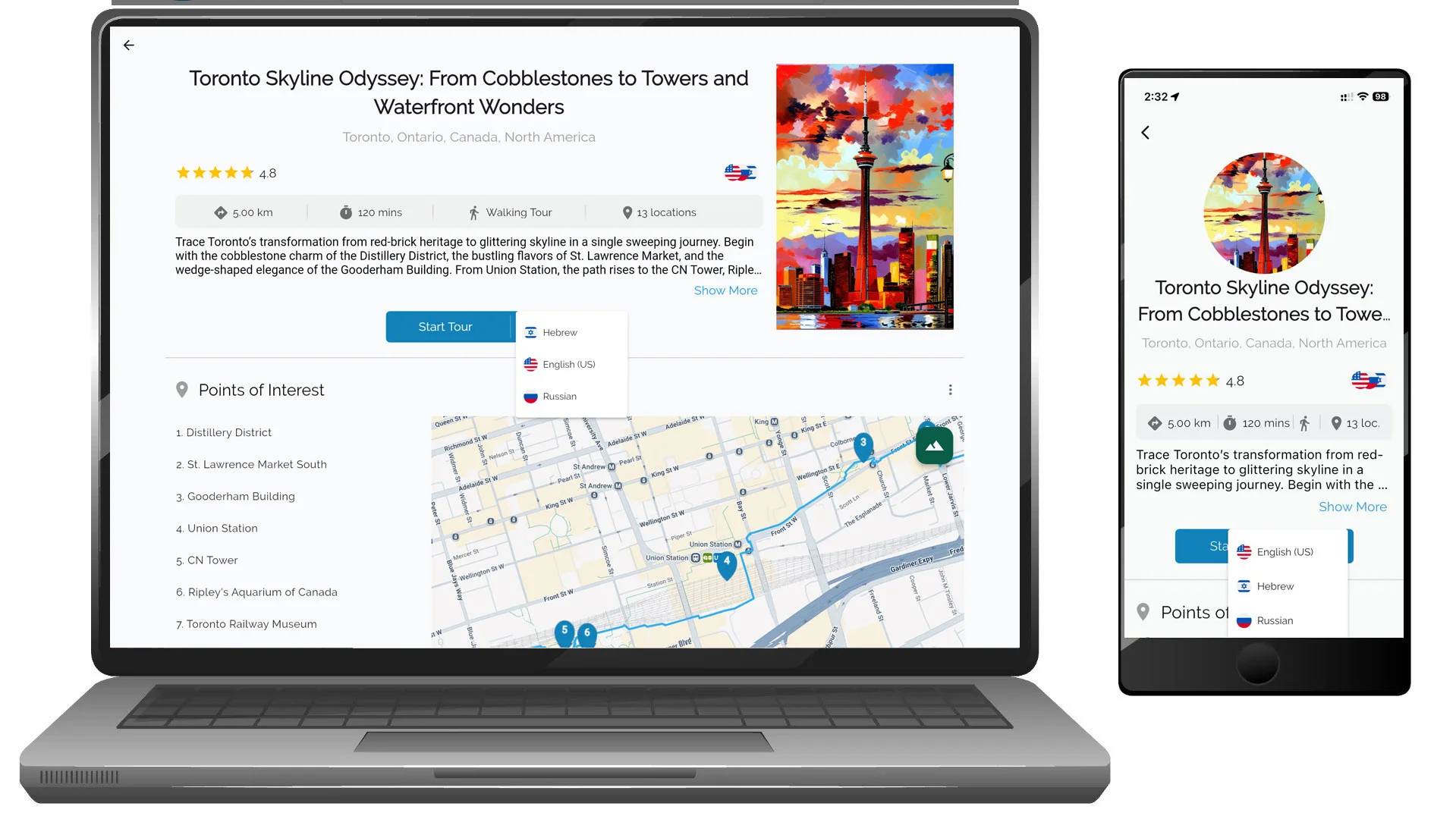
On the tour page, select your preferred audio language.
Tap or click the language selector next to the Start Tour button.
Available languages may include English, Hebrew, Russian, and others depending on the tour.
Step 3: Open a tour and view stops
Tap or click Start Tour (or open a tour page).
If you are not signed in, VoxTour.ai will prompt you to sign in or create an account before continuing.
Opening a tour does not start audio automatically.
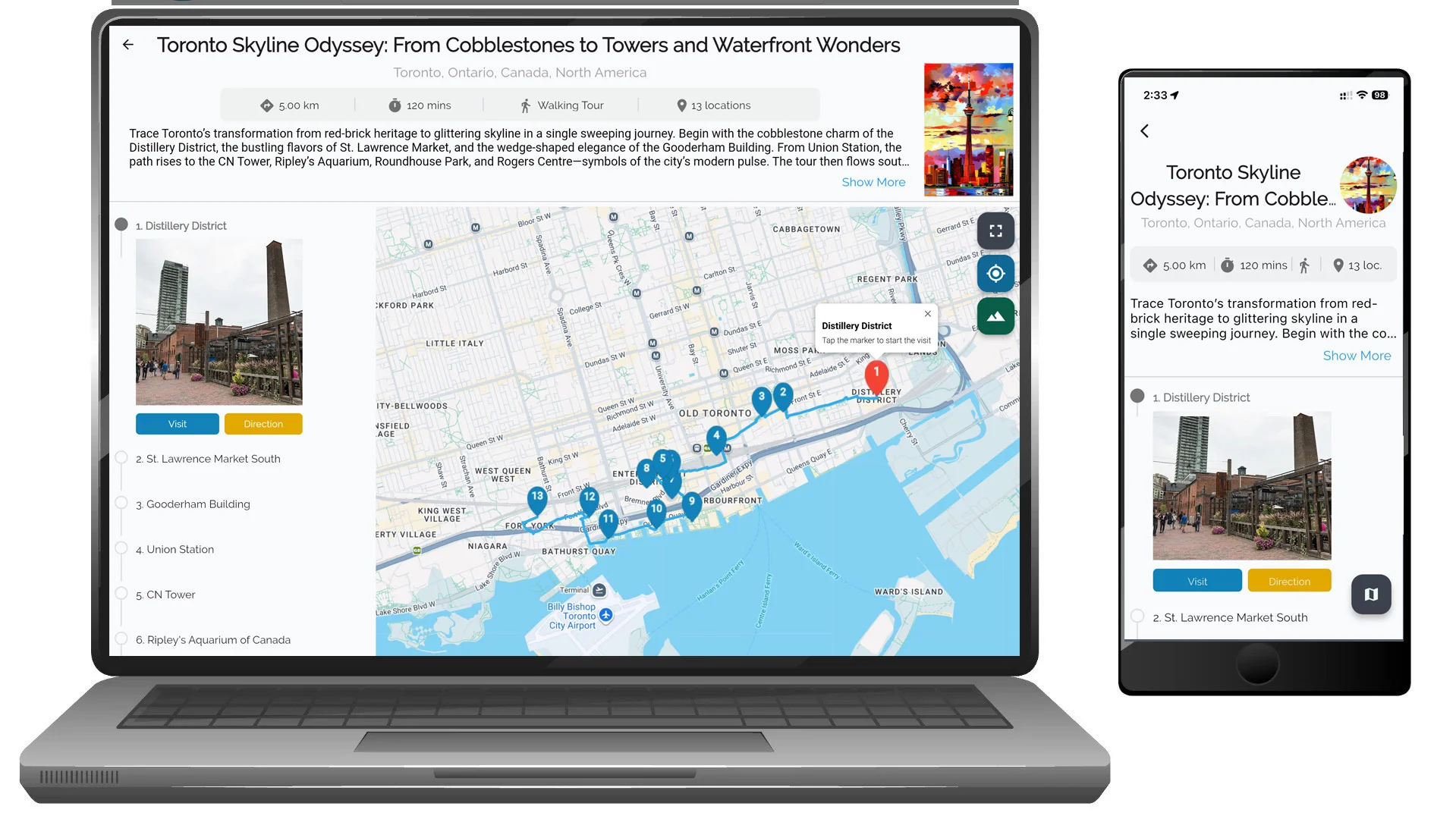
Instead, VoxTour.ai displays the list of stops (locations) included in the tour.
Each stop displays:
- Stop number and name
- Photo preview
- Visit button (opens location details and audio story)
- Direction button (opens navigation to the stop)
You can explore stops in order or jump to any location.
Step 4: Preview the tour route on the map
On mobile:
Tours include a Route icon (map/book icon). Tapping the Route icon opens the map centered on your current location.
This means:
- If you are currently in a different country, the route may not be immediately visible.
- You may need to manually zoom or move the map to view the full route.
The same behavior applies when tapping Direction - navigation is based on your current location.
On desktop:
The map appears alongside the tour content.
This makes it easier to:
- View the entire tour route
- Understand stop locations
- Explore the path even if you are not physically in the destination city
Step 5: Start listening at a stop
To begin listening:
Tap or click Visit next to a stop.
When you select Visit, VoxTour.ai:
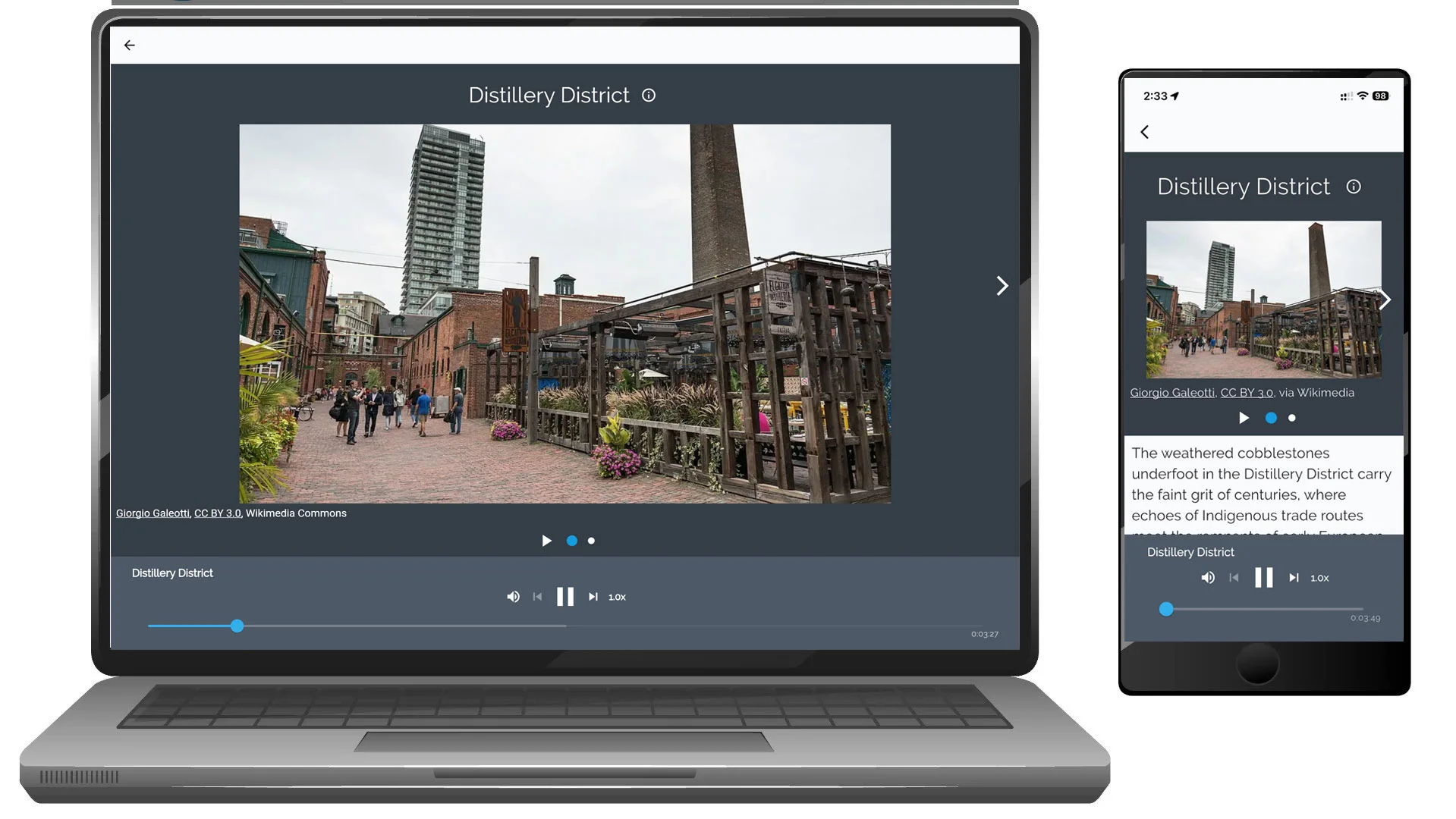
- Opens the stop page
- Launches the audio player
- Starts the story for that location
You can start from any stop, you do not have to follow the route in order.
Step 6: Use directions to navigate
The Direction button helps you navigate to a stop using map navigation.
On mobile:
- Directions may open navigation based on your current location.
On desktop:
- You can preview the stop location and route on the map before traveling.
Step 7: Use the audio player
While listening, you can:
- Pause or resume playback
- Skip forward or backward between stops
- Adjust playback speed
- Continue exploring the map while listening
You can stop and resume the tour anytime.
Step 8: Explore stops during the tour
While following the tour, you can:
- Open the map to see upcoming stops
- Select stops manually
- Read descriptions and view images
- Use navigation directions between locations
Flexible listening experience
With VoxTour.ai, you can:
- Follow the tour route step-by-step
- Visit stops in any order
- Pause and continue later
- Combine guided tours with spontaneous exploration
Tip:
Before starting a tour, preview the route on desktop or zoom out on mobile to better understand the full walking path.